


A Friendly Guide to Navigating the Transition with Confidence
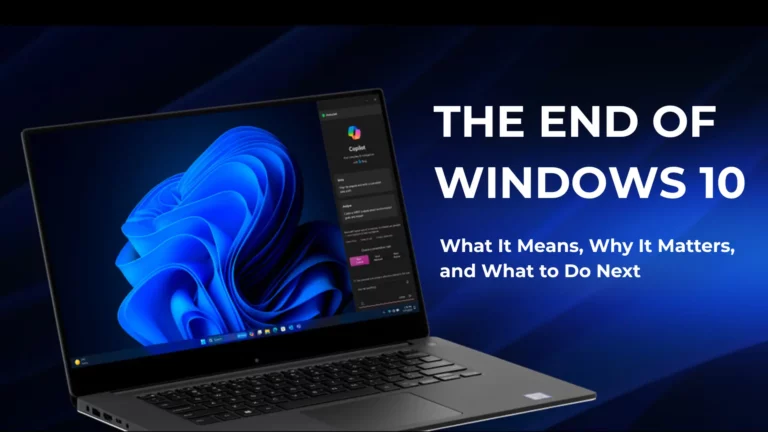
For nearly a decade, Windows 10 has been the familiar, dependable operating system that powered our desktops, laptops, offices, and home setups. It’s where we’ve written emails, managed businesses, watched our children’s schoolwork unfold, and so much more.
But like all good things, its chapter is drawing to a close.
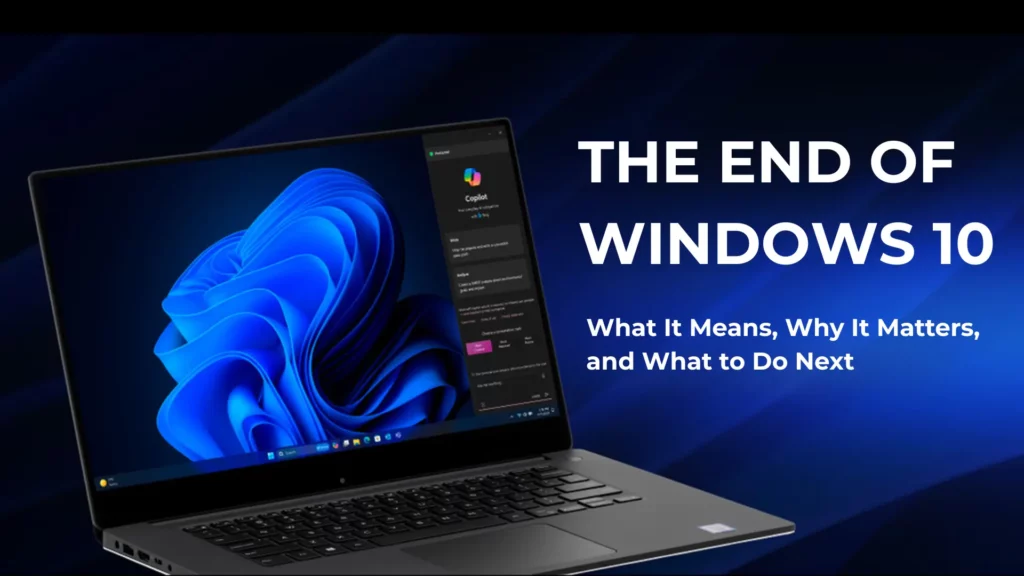
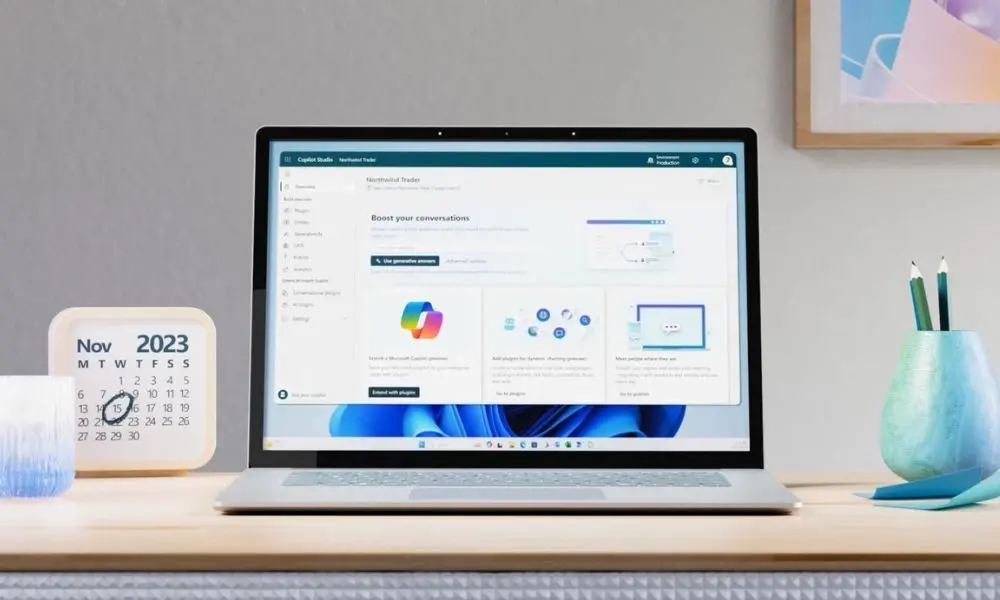
As of October 14th, 2025, Microsoft will officially end support for Windows 10. That means no more updates, no more security patches, and no more help from Microsoft if things go wrong.
This might sound a little scary but don’t worry. This blog is here to walk you through what’s happening, why it matters, and how to prepare – in plain English, without the tech jargon.
What “End of Support” Really Means
Let’s clear this up first:
Your computer won’t just stop working on October 14th, 2025. You’ll still be able to turn it on, use your apps, browse the internet, and send emails. So far, so good.
However, what will stop is the ongoing support from Microsoft, and that’s a big deal.
Here’s what that includes:
- ❌ No more security updates – leaving your system vulnerable to new threats
- ❌ No technical support – Microsoft won’t assist if something breaks
- ❌ No feature upgrades or fixes – your system won’t improve or evolve
Think of it like driving a car that’s no longer being serviced. It might still run for now, but the moment something goes wrong, you’re on your own.
Why This Matters – Even if Things Seem Fine Today
You might be thinking:
“If my PC is working fine, why should I bother upgrading?”
Great question. And here’s the answer:
Security Risks Multiply
Without updates, your device becomes a soft target for hackers and malware. In today’s world of phishing scams, ransomware, and cyberattacks, using an unsupported system is like leaving your front door unlocked.
Software Incompatibility
New applications – including antivirus programs, payroll systems, browsers, and cloud software will begin to require Windows 11. That means you might start running into “this version is not supported” messages sooner than you expect.
Compliance Headaches
If your business is in a regulated industry (like healthcare, finance, or legal), running unsupported systems could lead to data protection issues and even fines.
No One to Call When It Breaks
You won’t be able to ring Microsoft for help. And if your internal IT team is stretched, it could mean serious downtime.

What Are Your Options?
Thankfully, you’ve got choices. Here are the most common paths forward:
1. Upgrade to Windows 11 (If Your PC Can Handle It)
The easiest and most cost-effective option for many.
Windows 11 isn’t just a visual update. It’s faster, more secure, and full of clever features like:
- Copilot AI integration (your digital helper)
- Snap Layouts for multitasking
- Stronger built-in security with TPM 2.0 and Smart App Control
- Energy-efficient and modern design
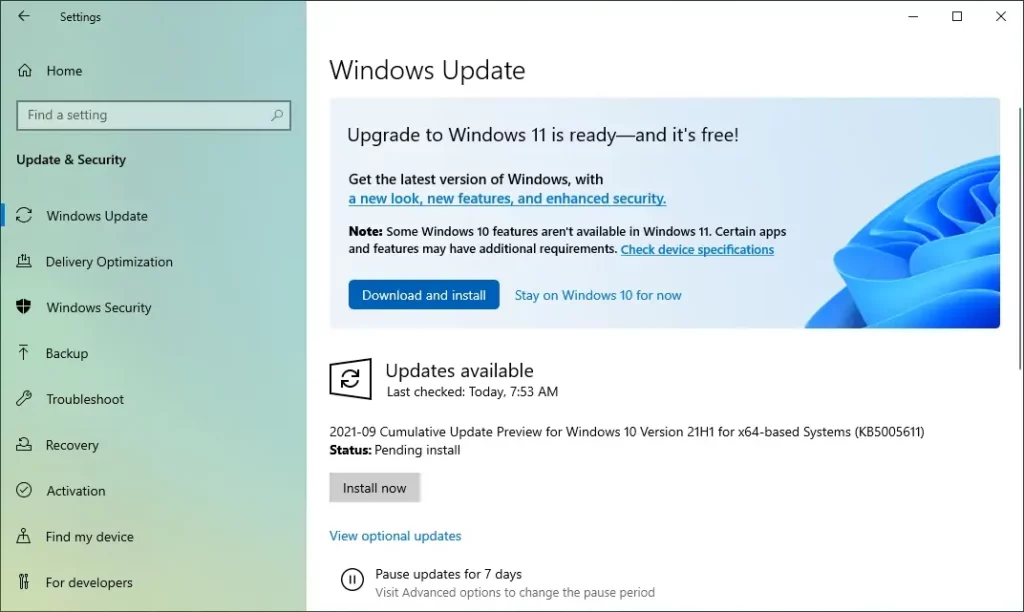
To check if your PC qualifies, go to:
Settings → Update & Security → Windows Update
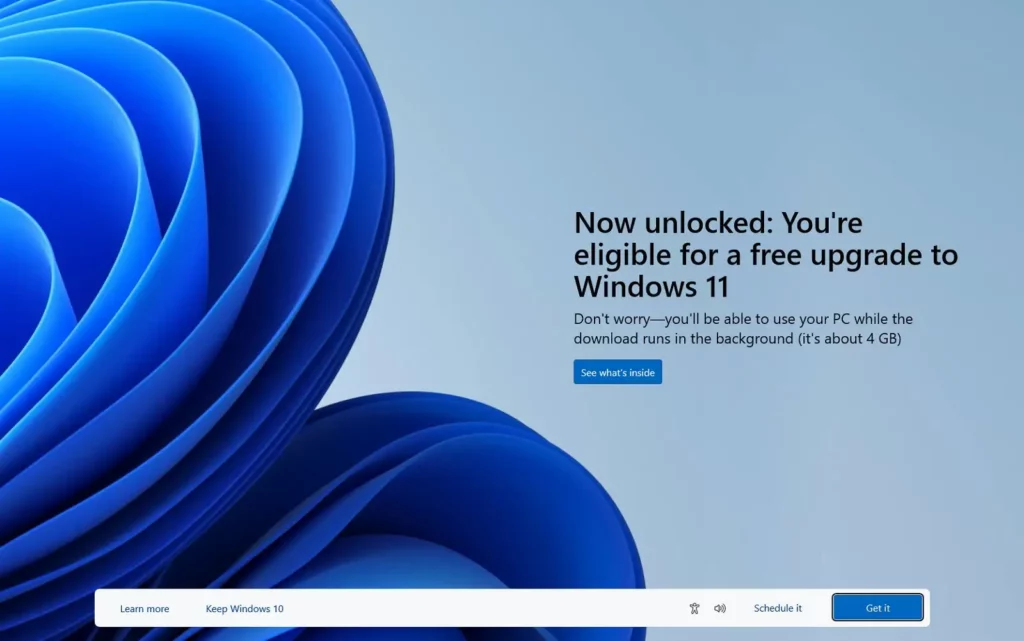
If it’s eligible, you may be able to upgrade for free.
2. Buy a New PC with Windows 11 Preinstalled
If your current PC is older than 5 years, chances are it won’t meet Windows 11’s requirements. In that case, upgrading may not be possible or it may lead to sluggish performance.
Investing in a new PC brings long-term benefits:
- Faster boot times and better battery life
- Quieter, more efficient hardware
- Extended support for years to come
- Increased reliability for your daily tasks
3. Buy Time with Extended Security Updates (ESU)
Microsoft is offering Extended Security Updates (ESUs) for those who can’t upgrade in time.
- ESUs provide critical security updates (but not new features)
- Available for up to three years
- Costs around £25–£30 per year per device
- Intended as a temporary solution, not a long-term fix
This is ideal for businesses that need more time, but it’s not a permanent answer.
What If You Just Do Nothing?
We get it – life gets busy, and if everything is working right now, it’s tempting to leave things as they are.
But here’s the honest truth:
Doing nothing will likely cost you more in the long run.
Without Microsoft’s ongoing support, your system becomes increasingly vulnerable, and problems that could have been prevented will be harder and more expensive to fix.
Let’s take a closer look at the risks:
1. Security Vulnerabilities
Every day, new threats emerge from viruses and ransomware to phishing scams and data breaches. Windows 10 will no longer receive updates to guard against these dangers. That means you’re essentially leaving the door wide open for cybercriminals.
2. Software and Hardware Incompatibility
As developers move forward, more apps, programs, and devices will stop supporting Windows 10. Over time, you may notice updates no longer install, features stop working, or you simply can’t use newer tools. That’s not just frustrating — it can disrupt your work or business.
3. Compliance Risks
If you handle personal or financial data especially in healthcare, legal, or finance running unsupported software may mean you’re not meeting your legal obligations for data protection. That could lead to regulatory penalties or lost trust.
4. No Safety Net
Once Windows 10 support ends, Microsoft won’t be there to help you troubleshoot or fix problems. If something goes wrong, you’re on your own and getting third-party help after a failure is always harder than preventing one in the first place.
5. Reputation Damage
For businesses, the consequences can go beyond the technical. Customers trust that your systems are safe and up to date. A single breach or significant downtime could harm your reputation and impact client relationships.
The bottom line?
Waiting until “something breaks” usually means higher costs, more stress, and fewer options.
Step-by-Step: How to Prepare for the Windows 10 Transition
Let’s slow it down and walk you through this in a supportive, no-pressure way.
You don’t need to be an IT expert to get this right just follow these clear steps.
Step 1: Take Stock of Your Devices
Whether you have a single laptop at home or an office full of machines, the first step is simply knowing what you’ve got.
Make a list that includes:
- Device brand and model
- Year it was purchased
- Whether it’s running Windows 10
- Whether it’s essential to daily use
This gives you a clear picture of what needs attention and helps you decide what to upgrade, replace, or retire.
Step 2: Check If They Can Run Windows 11
Not all Windows 10 devices can make the leap to Windows 11, but many can.
Use Microsoft’s PC Health Check Tool (free and easy to download) to scan each device. It’ll quickly tell you whether your machine is eligible, and if not, which part of the system doesn’t meet the requirements.
Helpful tip:
If your PC is more than 4–5 years old, it’s likely to fall short on processor or security chip compatibility (TPM 2.0).
Step 3: Back Up Everything Important
Before making any changes, it’s wise to back up your files. This includes:
- Documents and spreadsheets
- Emails
- Photos and videos
- Business data or client files
- Settings and bookmarks
Use OneDrive, an external hard drive, or your company’s backup solution. Better safe than sorry.
Step 4: Make a Transition Plan
If you’re part of a business, this is the moment to plan the rollout.
- Which devices will be upgraded and when?
- Who needs support during the transition?
- Will upgrades happen outside working hours?
- What’s the budget for replacing older machines?
A thoughtful plan avoids disruption and gives everyone time to adjust.
Step 5: Upgrade or Replace Devices
Once you know what’s eligible, start upgrading those devices to Windows 11. Microsoft makes this process relatively smooth, especially for compatible machines.
For devices that can’t be upgraded, decide whether to:
- Replace them with new Windows 11-ready hardware
- Enrol in Microsoft’s Extended Security Updates (a temporary patch, not a long-term solution)
Step 6: Offer Support After the Upgrade
Whether you’re managing a team or helping a family member, remember this: even small changes can feel big to others.
Once Windows 11 is installed, provide:
- A quick guide to new features
- Access to basic training (even YouTube has excellent free walk-throughs)
- Reassurance — most people adjust quickly once they realise it’s not that different
Still Feeling Unsure?
That’s completely normal.
This kind of change doesn’t happen every year and it affects both technology and people.
If you’re an individual:
✅ Start small. Run the PC Health Check tool, back up your files, and explore Windows 11.
If you’re a business:
✅ Speak to your IT provider or trusted advisor. You’ll save time, reduce stress, and avoid expensive surprises later on.
The end of Windows 10 might sound like the end of an era but really, it’s the start of something better.
- A system that’s faster and safer
- A foundation built with modern security
- A smoother experience for your team or household
- Support that doesn’t leave you in the dark
This isn’t about upgrading for the sake of it. It’s about keeping your digital world secure, reliable, and ready for whatever comes next.
Whether you’re a small business owner, a home user, or an IT manager — the time to act is now.
And the good news? You don’t have to figure it out alone.
If you need help building your plan or upgrading your setup, we’re here to guide you.
Let’s make this transition smooth, smart, and stress-free together.